How to Live Stream Cricket in 4K on YouTube via CricLogs App
Broadcast your club, school, turf, or tournament cricket matches in crisp 4K Ultra HD and
1080p directly to YouTube with automated live score overlays. From initial match setup in your
profile to going live on the CricLogs channel or your own YouTube channel, here is the complete
walkthrough.
⏱ 5-minute setup📱 4K smartphone & tripod📺 CricLogs or personal YouTube channel🎨 9 Classic strips & 10 team color options
Quick walkthrough: 6 steps to 4K cricket streaming
Log in & set up the match: Open CricLogs, log in, go to the Profile section and create your match with squads, overs, and ground venue.
Open the Go Live tab: Tap into the match card and switch to the Go Live tab where the broadcast card awaits.
Choose your YouTube destination: Select the official CricLogs YouTube Channel (zero setup, live in seconds) or connect your own YouTube channel.
Configure 4K & stream details: Set resolution to 4K / 1080p, AV1 or variable auto bitrate, landscape orientation, match title, and thumbnail.
Pick your score overlay: Choose from 9 classic broadcast themes (Classic Dark, Ocean Blue, Emerald Green, etc.) or select Team Colours with 10 custom color swatches for each squad.
Start streaming & share: Hit Start Streaming and copy the YouTube live link to WhatsApp and social media. Ball-by-ball scoring updates the broadcast overlay automatically!
Step 1: Log in and set up your match in Profile
Before any video goes live, the match must exist in the system. Because CricLogs connects
ball-by-ball scoring directly to the broadcast overlay, setting up the match details in advance
ensures team names, playing squads, and tournament branding show up cleanly on screen.
1
Download and log in to CricLogs
Install CricLogs from Google Play. Sign in using your Google account or mobile number to sync matches, teams, and live broadcasts to your profile.
2
Navigate to your Profile section
Tap your profile icon from the bottom navigation bar. Here you manage your created clubs, tournaments, career stats, and match setups.
3
Create or schedule the cricket match
Tap Create Match. Enter Team A and Team B names (or select from existing clubs),
choose the match format (Box Cricket, Tennis Ball, Leather Ball, Turf, or T20/ODI), set the total overs,
ground location, and scheduled toss time.
Tip for tournament organizers
Setting accurate player names during squad entry ensures that individual batter scores (runs and balls faced),
bowler figures (wickets and overs), and current partnerships appear accurately on the 4K YouTube score overlay.
Step 2: Open the "Go Live" tab on the match screen
Once your match is set up, open the match card. The match center contains tabs for
Info, Go Live, Sound, and AI Studio.
Anyone assigned as a scorer, team manager, or tournament admin can launch the broadcast.
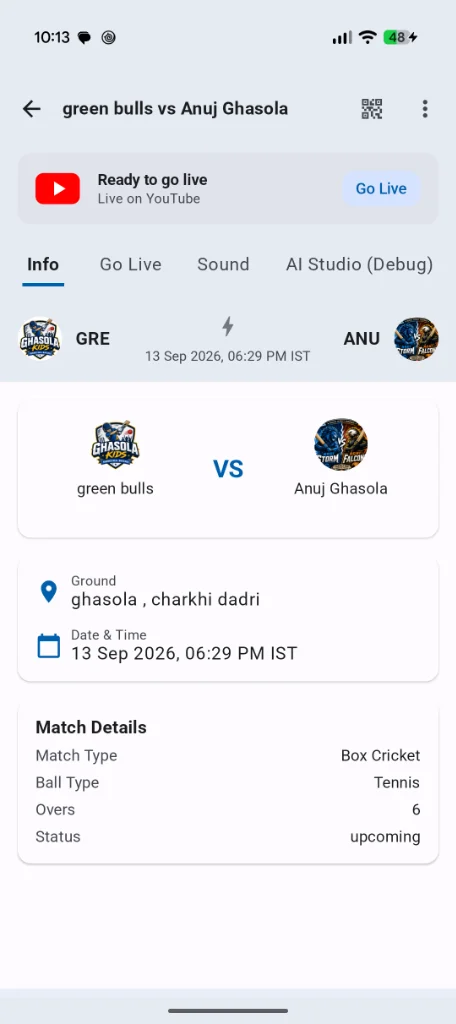
The match hub in CricLogs: tap "Go Live" from the top banner to launch the live stream wizard.
Inside the Match Center
Ready to go live card: A prominent red YouTube indicator shows match broadcast readiness. Tapping Go Live launches the 4-step stream setup wizard.
Info tab: Displays match status, venue ground (e.g., Ghasola, Charkhi Dadri), date & time, ball type, and scheduled overs.
Sound tab: Lets you configure stadium audio effects, boundary horns, or background crowd cheer.
Separate scoring and streaming: One person can hold the camera or tripod at the boundary while another scorer enters balls from the pavilion. Both sync seamlessly.
Step 3: Select your YouTube channel destination
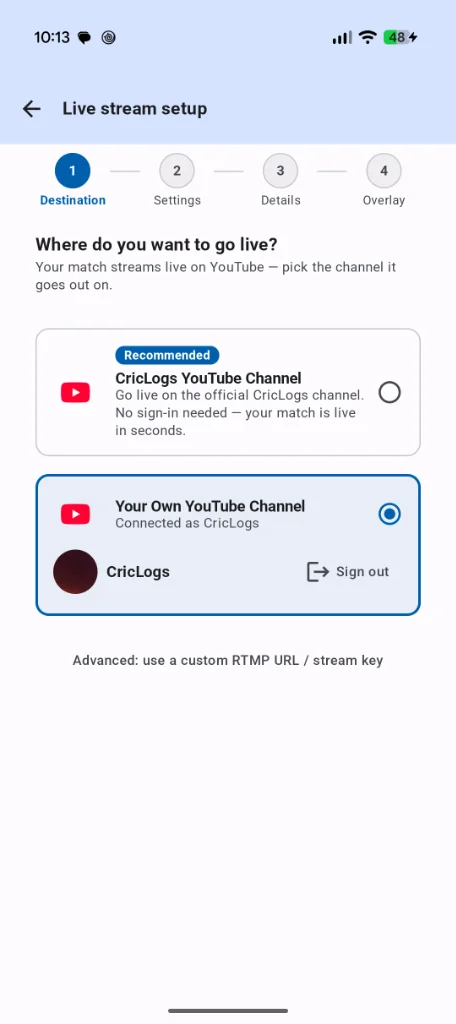
In Step 1 of the Live stream setup wizard (Destination), CricLogs asks where your
match should go live. You have two flexible paths depending on whether you already have a verified YouTube channel.
Choose between the official CricLogs YouTube Channel or connect your own YouTube account.
Option
Setup Required
Best For
CricLogs YouTube Channel (Recommended)
Zero setup. No sign-in or YouTube channel verification required. Your match goes live in seconds.
Quick matches, first-time streamers, schools, and tournament organizers who want immediate broadcasting without administrative hassle.
Your Own YouTube Channel
One-tap Google login connecting your personal, academy, or club YouTube channel. Also supports custom RTMP URL / stream keys.
Clubs, academies, and league organizers who want to grow their own YouTube subscriber base and keep video archives on their own channel.
Step 4: Configure 4K stream settings and match details
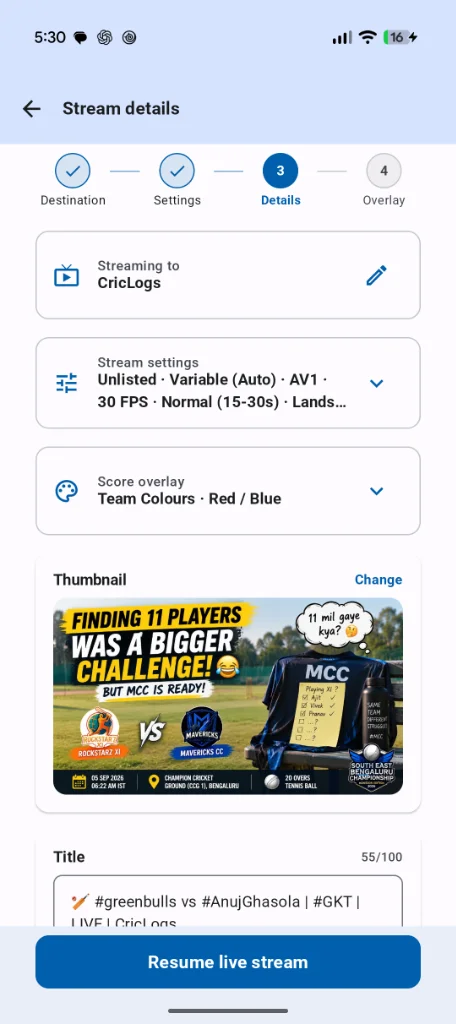
Steps 2 and 3 in the wizard (Settings and Details) allow you to configure
broadcast resolution, video codecs, framing, title, and match thumbnail.
Resolution & Codec: CricLogs supports hardware-accelerated 4K Ultra HD and 1080p60 encoding with next-generation AV1 and HEVC/H.264 codecs. AV1 delivers crystal-clear 4K detail with up to 30% lower data consumption.
Variable (Auto) Bitrate: Automatically adapts video bitrate to fluctuating mobile network speeds at outdoor grounds, preventing dropped frames or buffering.
Frame Rate: Choose between smooth 30 FPS or fluid 60 FPS for fast bowling action.
Orientation: Standard Landscape for traditional TV/YouTube viewing, or Portrait mode for vertical YouTube Shorts & mobile feeds.
Privacy: Choose Public for anyone to discover on YouTube, or Unlisted for private leagues and school tournaments shared only via link.
Custom Thumbnail & Title: Upload a custom match banner or use CricLogs' automated match title generator with hashtags (e.g., 🏏 #greenbulls vs #AnujGhasola | LIVE | CricLogs).
Step 5: Choose your score overlay — 9 classic strips or team colours
Step 4 of the wizard (Overlay) is where you customize how the scoreboard looks on screen.
CricLogs offers both professional pre-set designs and custom team color palettes, with a real-time preview toggle
between the Pre-Match Strip and Live Match Strip.
Option A: 9 Classic score strips
Classic Themes
Choose from 9 television-grade broadcast styles. Popular options include Classic Dark,
Ocean Blue, Emerald Green, Royal Purple,
Sunset Orange, and Crimson.
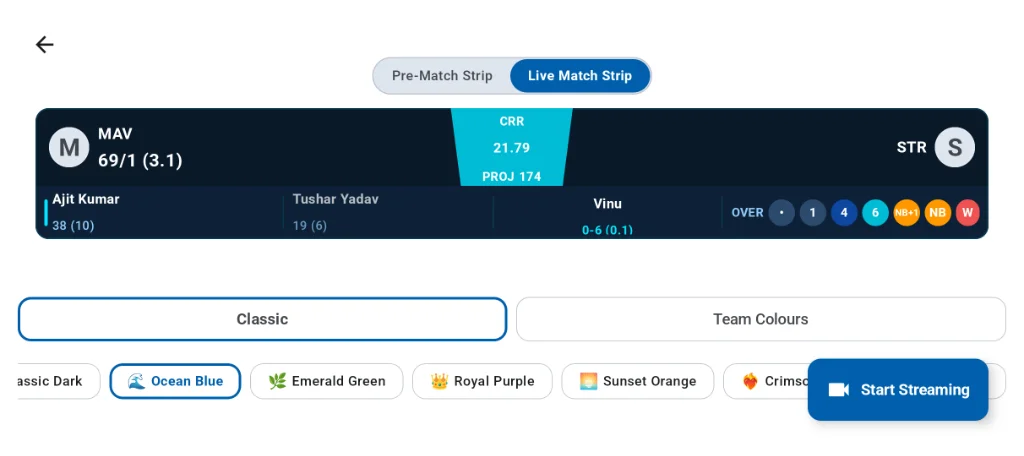
The Classic score strip (Ocean Blue selected) displaying team score, run rate (CRR 21.79), projected score (PROJ 174), batters, bowler, and ball dots.
The Live Match Strip displays the active batting team acronym, total runs, wickets, overs,
current run rate (CRR), projected score (PROJ), individual striker & non-striker scores with balls faced,
bowler figures (wickets-runs and overs), and current over ball dots (singles, boundaries, no-balls, wickets).
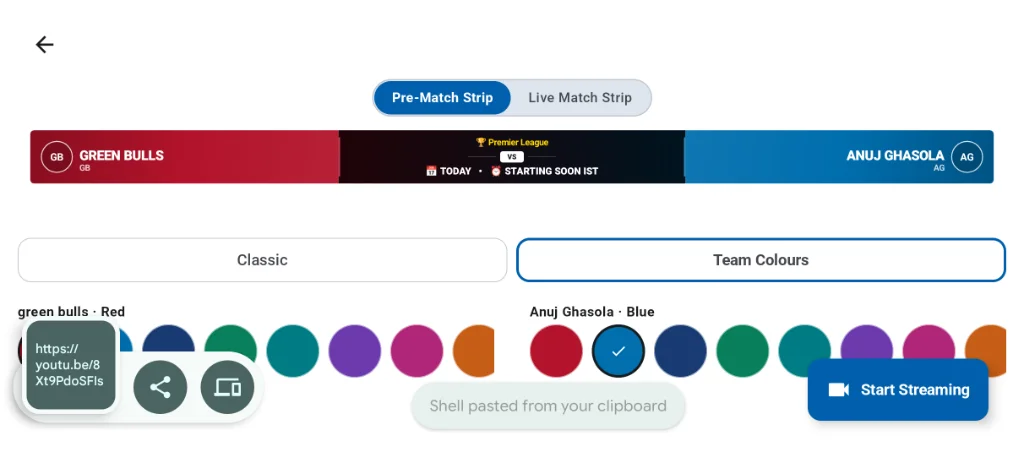
Option B: Team colours based strip (10 color swatches per team)
Custom Jersey Colors
Match your broadcast graphics to the real jerseys worn on the pitch! Switch to the Team Colours tab
to assign contrasting colors to Team A and Team B.
Customize the score strip with 10 color swatches for each team (e.g., Red for Green Bulls vs Blue for Anuj Ghasola).
Each team has 10 vibrant color options (Red, Navy, Royal Blue, Teal, Emerald Green, Royal Purple,
Magenta, Sunset Orange, Amber, and Dark Charcoal). In the Pre-Match Strip preview, team badges,
names, tournament logos, and match countdown timers are rendered in your selected team colors.
Step 6: Start streaming and share the live link
Once your destination, stream settings, and score overlay strip are selected, tap the blue
Start Streaming (or Resume live stream) button.
1
Broadcast begins immediately
The camera feed initializes in 4K resolution with the score overlay composited directly onto the video feed.
2
Share with one tap
A floating share pill displays your live YouTube link (e.g., https://youtu.be/...). Tap the share icon to send it directly to WhatsApp groups, team chats, or copy it to the clipboard.
3
Automated scoring synchronization
As the scorer enters runs, extras, or wickets in the CricLogs scoring interface, the YouTube score strip updates in real time with zero delay and no manual graphics operation.
4K ground setup & upload speed requirements
Streaming 4K video for 3 to 6 hours at an open outdoor cricket ground requires proper attention to
network stability, battery power, and heat management.
Stream Quality
Target Bitrate
Recommended Upload Speed
Suggested Network
4K Ultra HD (2160p)
15 – 25 Mbps
25+ Mbps sustained
Ground 5G or high-speed venue Wi-Fi
1080p Full HD (60 FPS)
6 – 10 Mbps
15+ Mbps sustained
Dedicated 5G / strong 4G SIM
1080p / 720p (30 FPS)
3 – 6 Mbps
8+ Mbps sustained
Standard 4G LTE or mobile hotspot
Crucial ground equipment
Heavy-duty tripod: Place the tripod roughly 5 to 6 feet high directly behind the wicketkeeper in line with the pitch stumps. Hang a kit bag from the center column for wind ballast.
Phone shading umbrella: Never leave a phone recording in direct sunlight. Clip a small umbrella or sunshade over the phone to prevent thermal throttling and screen dimming.
10,000+ mAh power bank: 4K video recording and 5G transmission consume significant battery. Connect a portable power bank before the first ball is bowled.
Do Not Disturb enabled: Switch on Do Not Disturb and disable incoming calls to prevent personal ringtones from interrupting the broadcast.
Frequently asked questions
Can I stream cricket in 4K directly from my phone?
Yes. Smartphones with 4K camera sensors can stream directly to YouTube through CricLogs.
The app utilizes hardware video acceleration (including AV1 and HEVC codecs) to composite the live score
overlay directly onto the video feed, avoiding laptops, capture cards, or OBS setups.
Do I need 1,000 YouTube subscribers to go live in 4K?
No. YouTube's 1,000-subscriber rule only applies to mobile streaming via the YouTube app itself.
CricLogs uses YouTube's encoder API, which requires only a verified channel in good standing.
Additionally, you can choose the official CricLogs YouTube Channel to go live instantly
with zero sign-in or subscriber requirements.
How do the 9 classic score strips and team colors work?
In the Overlay step, you can pick from 9 classic television-style strips (Classic Dark, Ocean Blue,
Emerald Green, Royal Purple, Sunset Orange, Crimson, etc.) or switch to the Team Colours tab to choose from
10 color swatches for each team (Red, Navy, Blue, Teal, Emerald Green, Purple, Magenta, Orange, etc.).
Both options support Pre-Match and Live Match strip previews.
Can one person score while another operates the camera?
Yes. CricLogs matches sync in real time over the cloud. One phone can be locked in position on a tripod
behind the wicketkeeper running the 4K live stream, while a scorer sits anywhere at the venue entering ball-by-ball
scores. The live overlay updates automatically with every entered ball.
Is live streaming free in CricLogs?
Yes. Core live streaming to YouTube is 100% free with CricLogs, with zero advertisements.
An optional Pro subscription adds unlimited streaming and deep match analytics insights.