A live cricket score overlay for OBS and Prism Live Studio
Running a multi-camera stream from a laptop, but still typing the score into a text box? Score the match in the CricLogs app and add one link to OBS or Prism as a browser source. The score strip, boundary and wicket banners and innings cards update by themselves, ball by ball.
The short answer
- Score the match in CricLogs on any Android phone at the ground.
- Copy the overlay link from Go Live → Stream with OBS / Prism.
- Add it as a Browser Source at 1920 × 1080 (or add
?scale=0.6667for 720p). - Place it above your cameras. The background is transparent.
- That's it. The strip and banners follow the scoring in real time; nobody types a score.
What the overlay shows
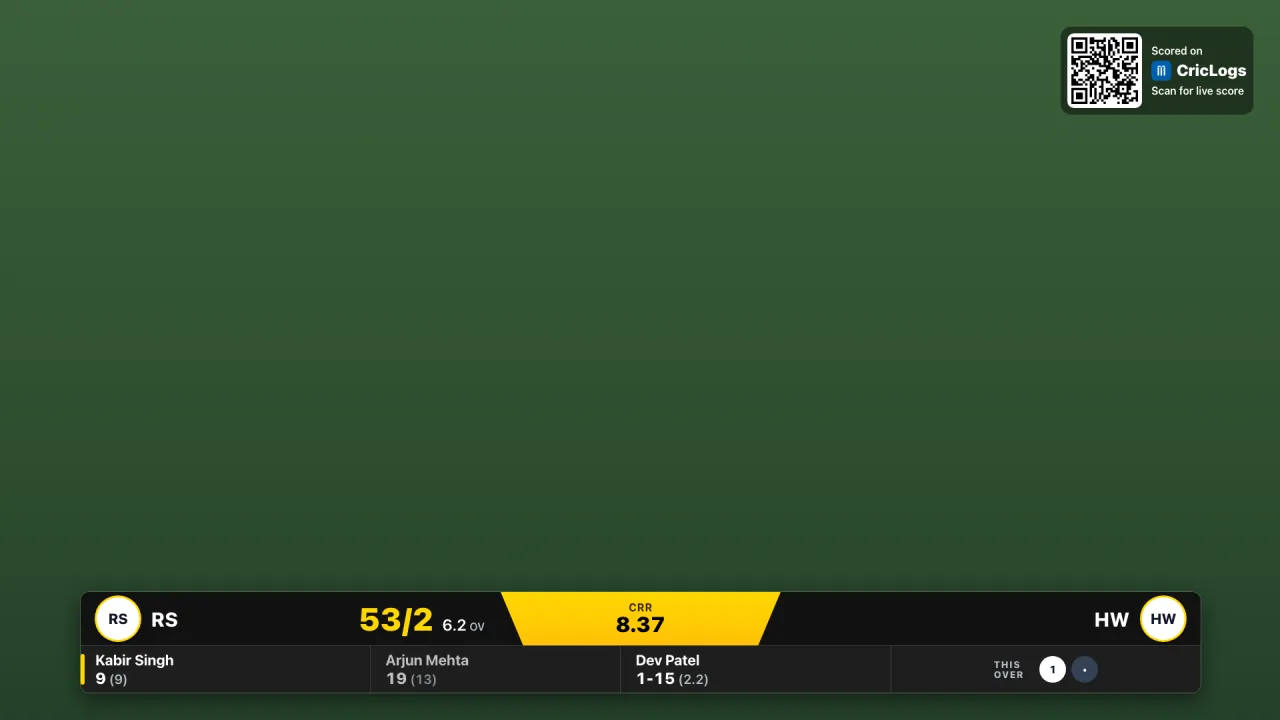
- Score strip: batting and bowling teams, score and overs, current run rate, striker and non-striker with runs and balls, the bowler's figures and the balls of this over.
- Event banners: FOUR!, SIX! and WICKET! with the player's name, worked out automatically from the scoring.
- Innings break and result cards between innings and at the end of the match.
- Upcoming-match card before the toss, with both teams.
- Live-score QR badge: viewers scan it to open the live scorecard on their phone.
- Seven strip themes: Classic Dark, Crimson Red, Emerald Green, Ocean Blue, Pearl White, Royal Purple and Sunset Orange, with the strip at the top or bottom of the frame.
When to use OBS instead of streaming from the phone
For most local matches, streaming directly from the CricLogs app is simpler: one phone films, scores and streams, with the score strip built in. Use OBS or Prism when you need things a single phone cannot do.
| You want… | Stream from the CricLogs app | OBS / Prism + overlay link |
|---|---|---|
| One camera behind the keeper | ✔ Best option | Works, but more equipment |
| Two or more cameras, switching between them | — | ✔ |
| A DSLR, camcorder or capture-card camera | — | ✔ |
| Replays, commentary mics, sponsor videos between overs | AI commentary only | ✔ |
| Stream to several platforms with a multistream tool | One destination per stream | ✔ |
| Setup time at the ground | About 2 minutes | 20–30 minutes |
Both use the same scoring, so you can start with the phone and move to OBS for finals without changing how your scorers work.
Set up the overlay in OBS or Prism
-
1
Start the match in CricLogs
Create or open the match in the CricLogs Android app and set the teams and squads. The overlay reads its score from this match.
-
2
Copy the overlay link
On the match screen, open Go Live → Stream with OBS / Prism and copy the overlay link. It looks like
https://criclogs.com/overlay/…and belongs to this match only. -
3
Add a Browser Source
In OBS Studio, click + under Sources and choose Browser. In Prism Live Studio, add a web or browser source. Paste the overlay link as the URL.
-
4
Set the size to 1920 × 1080
Set width 1920 and height 1080 so the overlay matches a Full HD canvas. On a 1280 × 720 canvas, add
?scale=0.6667to the end of the link. -
5
Put it above your camera
Drag the browser source above your camera sources in the list. The background is transparent, so only the score strip, banners and QR badge sit over the video.
-
6
Score the match as normal
As the scorer enters each ball in the app, the strip, the FOUR, SIX and WICKET banners and the innings cards update by themselves.
Open https://criclogs.com/overlay/?demo=1 as a browser source to see a sample match play through the strip, banners and cards. Use it to position the overlay and check it does not cover your camera's important area before your real link is live.
Getting phone cameras into OBS
Many local productions use phones as cameras. Common ways to bring them into OBS or Prism:
- USB or Wi-Fi webcam apps turn a phone into a camera source on the laptop. USB is more reliable at a ground than Wi-Fi.
- Prism Live Studio can take a phone camera from its mobile app into the PC app.
- HDMI capture card for a camcorder or mirrorless camera with clean HDMI output.
Place the main camera behind the keeper, in line with the pitch, as in the camera angles guide. A second camera square of the wicket or behind the bowler is for replays and close-ups.
How overlay links work
- One link per match. Each match has its own overlay link. Create a new one for the next match.
- Links stop 24 hours after the match ends, so an old link cannot show up on someone else's stream.
- Style comes from the app. The theme and strip position come from your overlay settings in CricLogs and update on the browser source by themselves.
- Open it in a limited number of places. If the same link is open in too many OBS or Prism scenes, it pauses and reconnects when the others close.
- Tied to your CricLogs streaming plan. If your plan lapses, the overlay shows a notice and comes back by itself after renewal.
Troubleshooting
| The overlay says… | What it means | Fix |
|---|---|---|
| Waiting for the live score | The link works, but scoring has not started. | Start the match in the app; the strip appears with the first ball. |
| This overlay link is incomplete | Part of the link is missing. | Copy the full link again from Go Live → Stream with OBS / Prism. |
| This overlay link is disabled | The link was replaced or turned off. | Copy the latest link from the app. |
| This match's overlay has expired | More than 24 hours since the match ended. | Create a new link for the next match. |
| Overlay open in too many places | The same link is open in several scenes or computers. | Close the extra copies; this one reconnects. |
| The overlay couldn't start | The browser source failed to start a session. | Refresh the browser source. If it keeps happening, update the app. |
If the strip is the wrong size, check the browser source is 1920 × 1080 and the canvas matches, or use ?scale= for other canvas sizes.
Frequently asked questions
Does the CricLogs overlay work with OBS Studio?
Does it work with Prism Live Studio and other software?
Do I need to type the score into OBS?
How do I use it on a 720p canvas?
Can I change the overlay theme?
Can I try it without a match?
Put a live score on your OBS stream
Download CricLogs for Android, score the match, and copy the overlay link from Go Live → Stream with OBS / Prism.
Download free on Google Play